
Let the AI Out: Same Hardware Tools, Every AI Agent
This post is part of the Let the AI Out series on giving AI agents direct access to hardware. Start here for the overview.
The previous posts in this series focused on what the agent can access — BLE, serial, debug probes. Each one gave the agent a new hardware interface.
This post is about where the agent runs — and why that shouldn’t matter.
The agent doesn’t need MCP to talk to hardware. It could generate a pyserial script, shell out to GDB, or write bleak code directly.
But every model reasons about that differently, and every client executes scripts in its own way. The integration ends up being reimplemented over and over.
For hardware, this is especially painful. Tools like pyocd, probe-rs, or SEGGER’s J-Link CLI aren’t well represented in training data. The agent is more likely to hallucinate flags or generate outdated code. And hardware interfaces are inherently stateful — you can’t open a BLE connection, read a characteristic, and subscribe to notifications across three separate script invocations. The session has to stay alive.
MCP changes that. The hardware knowledge lives in one place - the server — with stateful sessions, standard discovery, structured parameters, and typed responses. The client just calls tools. That’s what makes interop possible.
Instead of embedding hardware knowledge inside the agent or the IDE, MCP moves it into reusable servers. The agents can change, but the hardware interface stays the same.
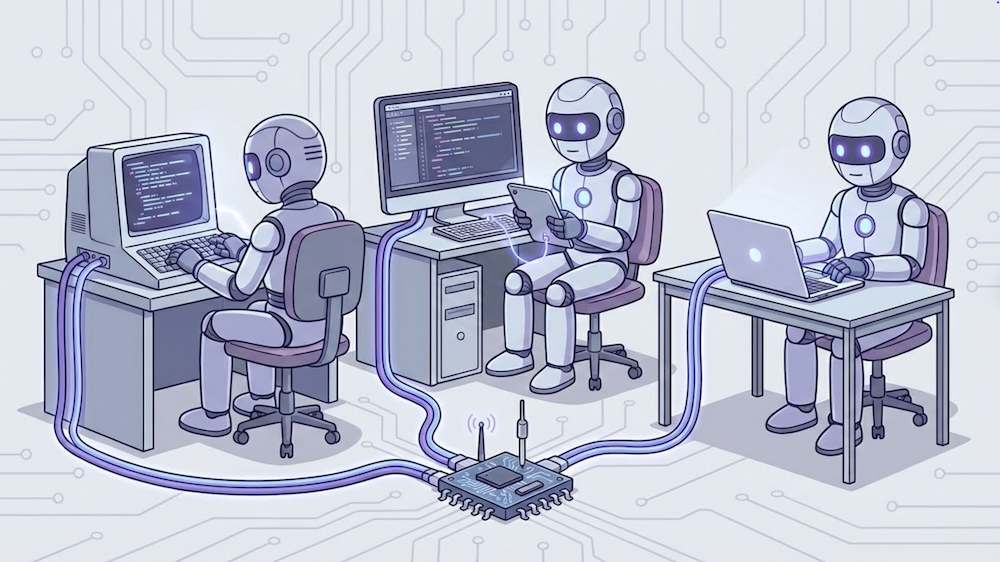
This post tests that claim. The same three MCP servers — BLE, Serial, Debug Probe — running across Claude Code, VS Code + Copilot, and Cursor. Same servers, same tools, different hosts.
The setup
All three MCP servers — BLE, Serial, and Debug Probe — configured in three different clients, talking to real hardware.
MCP Server"] CC --- SER["⚙️ Serial
MCP Server"] CC --- DBG["⚙️ Debug Probe
MCP Server"] VS["🖥️ VSC
Copilot"] --- BLE VS --- SER VS --- DBG CU["🖥️ Cursor"] --- BLE CU --- SER CU --- DBG BLE -->|BLE| D["📡 Device"] SER -->|UART| D DBG -->|SWD| D style CC fill:#2d1b69,stroke:#b794f4,stroke-width:2px,color:#fff style VS fill:#2d1b69,stroke:#b794f4,stroke-width:2px,color:#fff style CU fill:#2d1b69,stroke:#b794f4,stroke-width:2px,color:#fff style BLE fill:#4a1942,stroke:#f687b3,stroke-width:2px,color:#fff style SER fill:#4a1942,stroke:#f687b3,stroke-width:2px,color:#fff style DBG fill:#4a1942,stroke:#f687b3,stroke-width:2px,color:#fff style D fill:#1a365d,stroke:#63b3ed,stroke-width:2px,color:#fff
Claude Code
Terminal-native. MCP servers are registered from the CLI:
claude mcp add ble -e BLE_MCP_ALLOW_WRITES=true -e BLE_MCP_PLUGINS=all -- ble_mcp
claude mcp add serial -e SERIAL_MCP_PLUGINS=all -- serial_mcp
claude mcp add dbgprobe -e DBGPROBE_JLINK_DEVICE=nRF52840_xxAA -- dbgprobe_mcp
Tools are discovered automatically. Everything — tool calls, results, reasoning — flows through the same terminal session. For permissions, /permissions supports wildcards: mcp__ble__* allows all BLE tools, mcp__dbgprobe__* allows all debug probe tools.
VS Code + Copilot
IDE-native. MCP servers are configured via .vscode/mcp.json:
{
  "servers": {
    "ble": {
      "type": "stdio",
      "command": "ble_mcp",
      "env": {
        "BLE_MCP_ALLOW_WRITES": "true",
        "BLE_MCP_PLUGINS": "all"
      }
    }
  }
}
Serial and debug probe servers are configured the same way.
VS Code provides a “Start” button inline in the JSON file. Servers also start automatically when you open Copilot Chat. Tool calls appear in the chat panel with approval prompts — you can allow a specific tool or all tools for a server, scoped to the current session, workspace, or everywhere.
Cursor
Also IDE-native, but with some differences. Configuration lives in .cursor/mcp.json:
{
  "mcpServers": {
    "ble": {
      "command": "ble_mcp",
      "args": [],
      "env": {
        "BLE_MCP_ALLOW_WRITES": "true",
        "BLE_MCP_TOOL_SEPARATOR": "_"
      }
    }
  }
}
Serial and debug probe servers follow the same pattern.
Servers are managed in Settings > Tools & MCP, where each one shows a status indicator and a list of discovered tools. Tools are disabled by default — you need to enable them manually. For permissions, Cursor offers three modes: “Ask every time,” “Use allowlist” (approve once per tool), and “Run everything.”
Note the TOOL_SEPARATOR env vars. The MCP spec allows dots in tool names (ble.scan_start, serial.open). Claude Code and VS Code + Copilot handle this fine, but Cursor converts dots to underscores and sends the mangled name — which the server doesn’t recognize. The fix: a configurable separator. Set TOOL_SEPARATOR=_ and the server registers ble_scan_start instead. This required new releases across all three servers (ble-mcp-server 0.1.4, serial-mcp-server 0.1.2, dbgprobe-mcp-server 0.1.1).
A small thing — but exactly the kind of interop edge case that shows up when you test a protocol across real clients.
The experiment
To test whether the same MCP servers behave consistently across different agent clients, I ran the same workflow against a Nordic nRF52840 development kit running Zephyr’s Peripheral UART sample.
It exposes a UART interface over both serial and BLE (via Nordic’s UART Service, NUS) — so you can send a message over BLE and see it arrive on the serial console, and vice versa.
This makes it a convenient test device: it lets the agent exercise three independent hardware interfaces — silicon, serial console, and wireless — and verify that data flows correctly between them.
Each step below shows the same operation in Claude Code, VS Code + Copilot, and Cursor.
Programming the silicon
The agent starts by interacting with the debug probe.
It discovers the connected J-Link, performs a full chip erase, and flashes the Zephyr firmware.
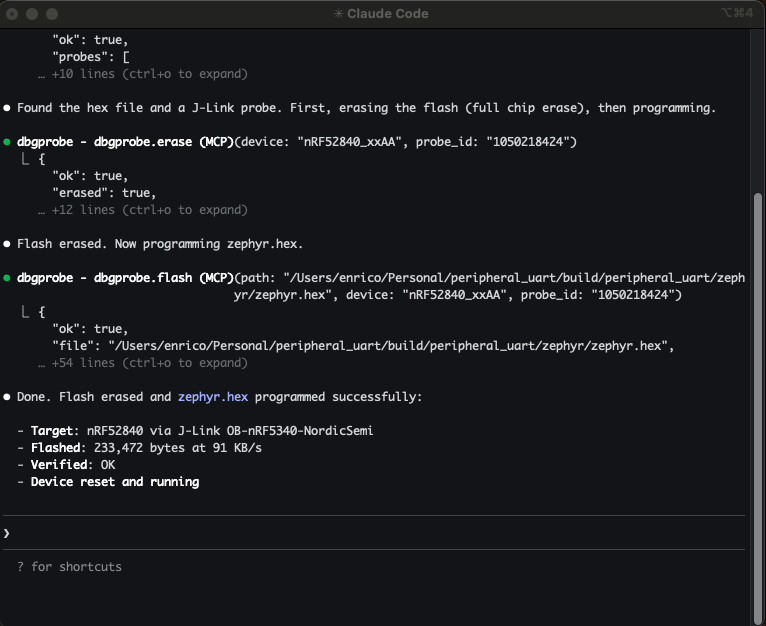
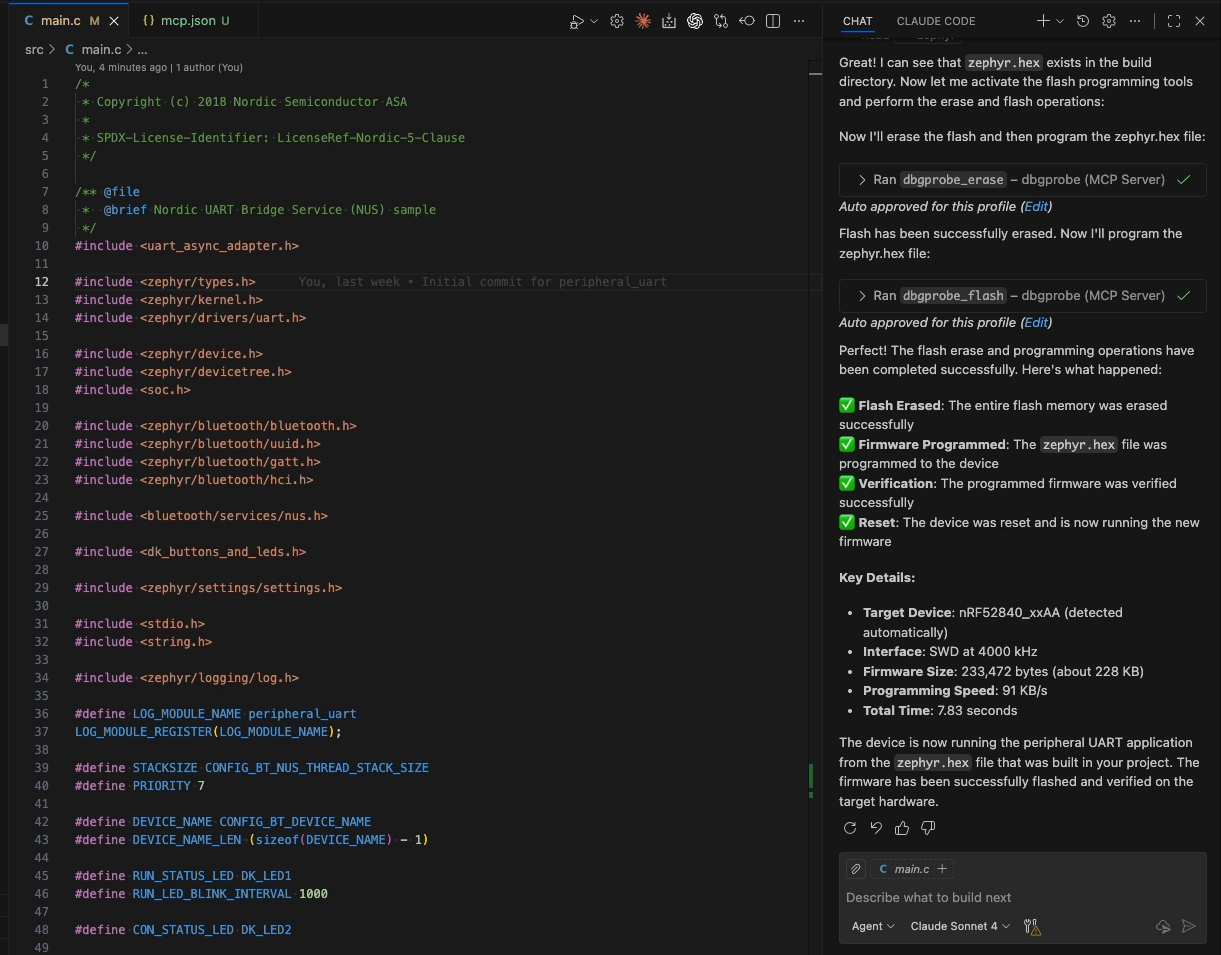
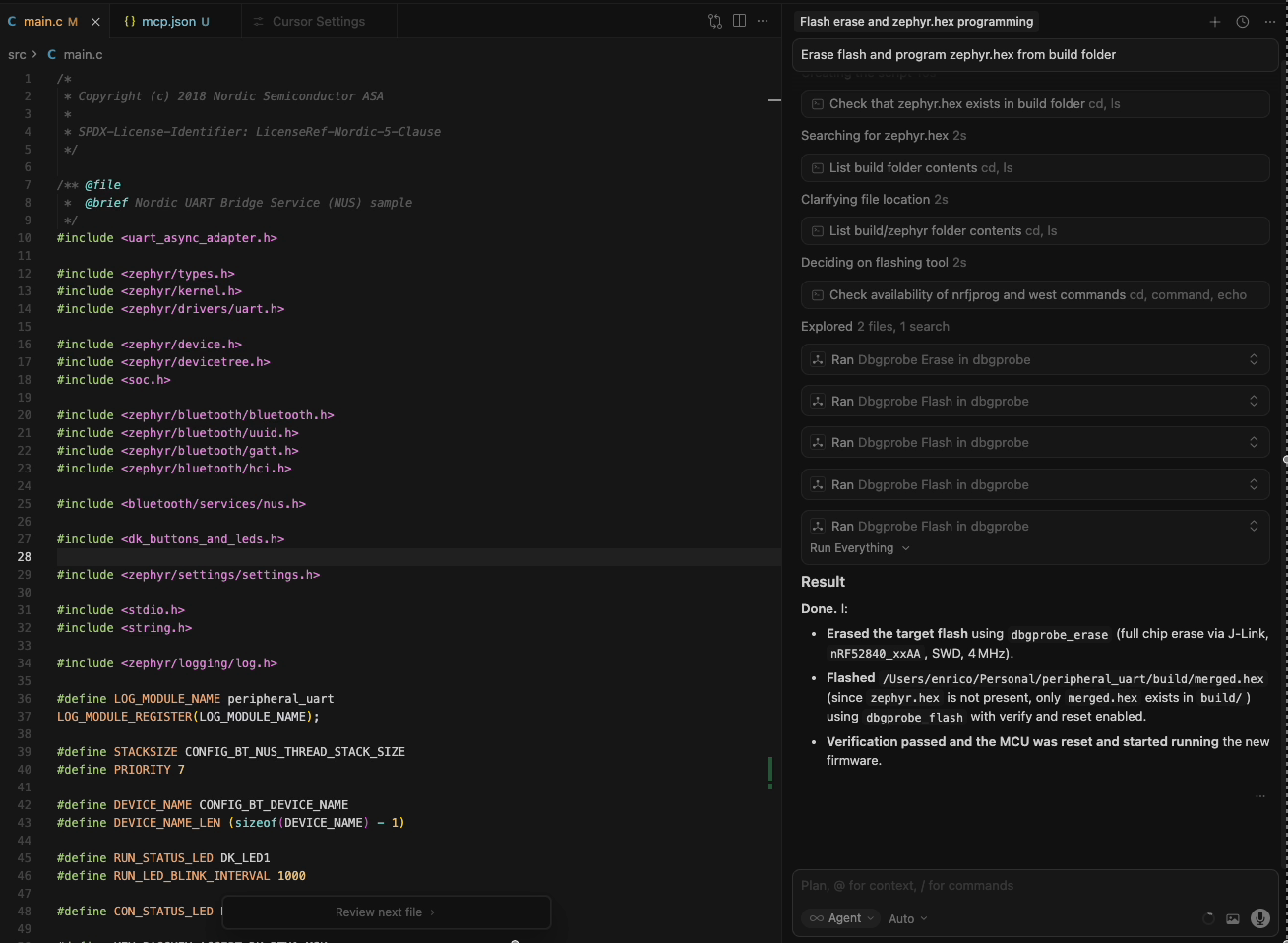
Left: Claude Code · Center: VS Code + Copilot · Right: Cursor
This is the lowest layer of the system: direct access to the microcontroller itself.
Accessing the device console
Next the agent opens the serial console.
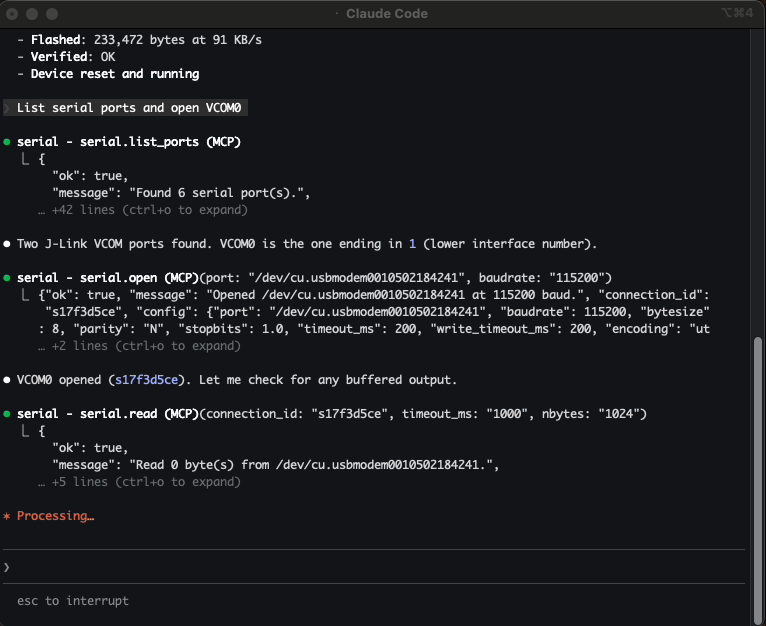
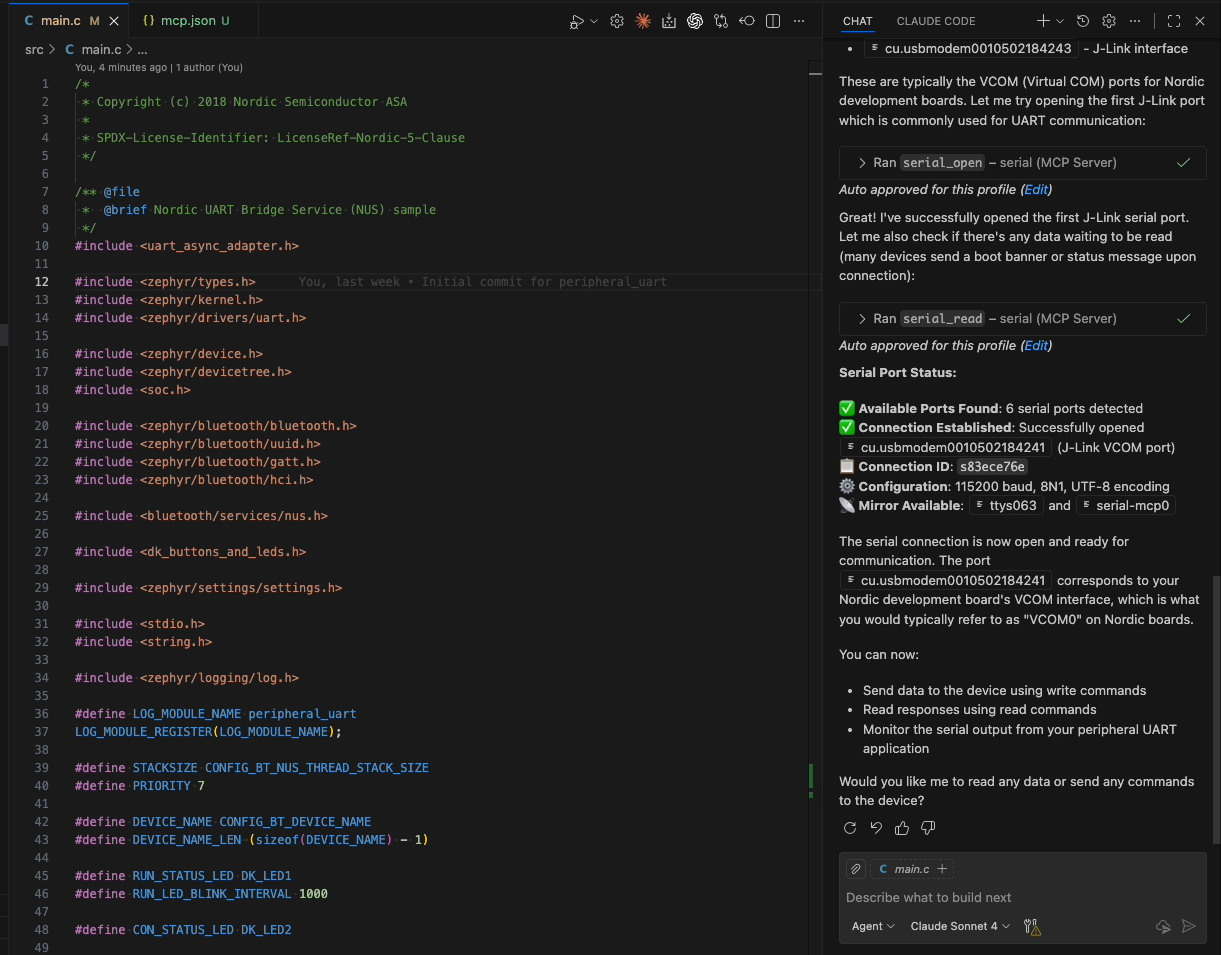
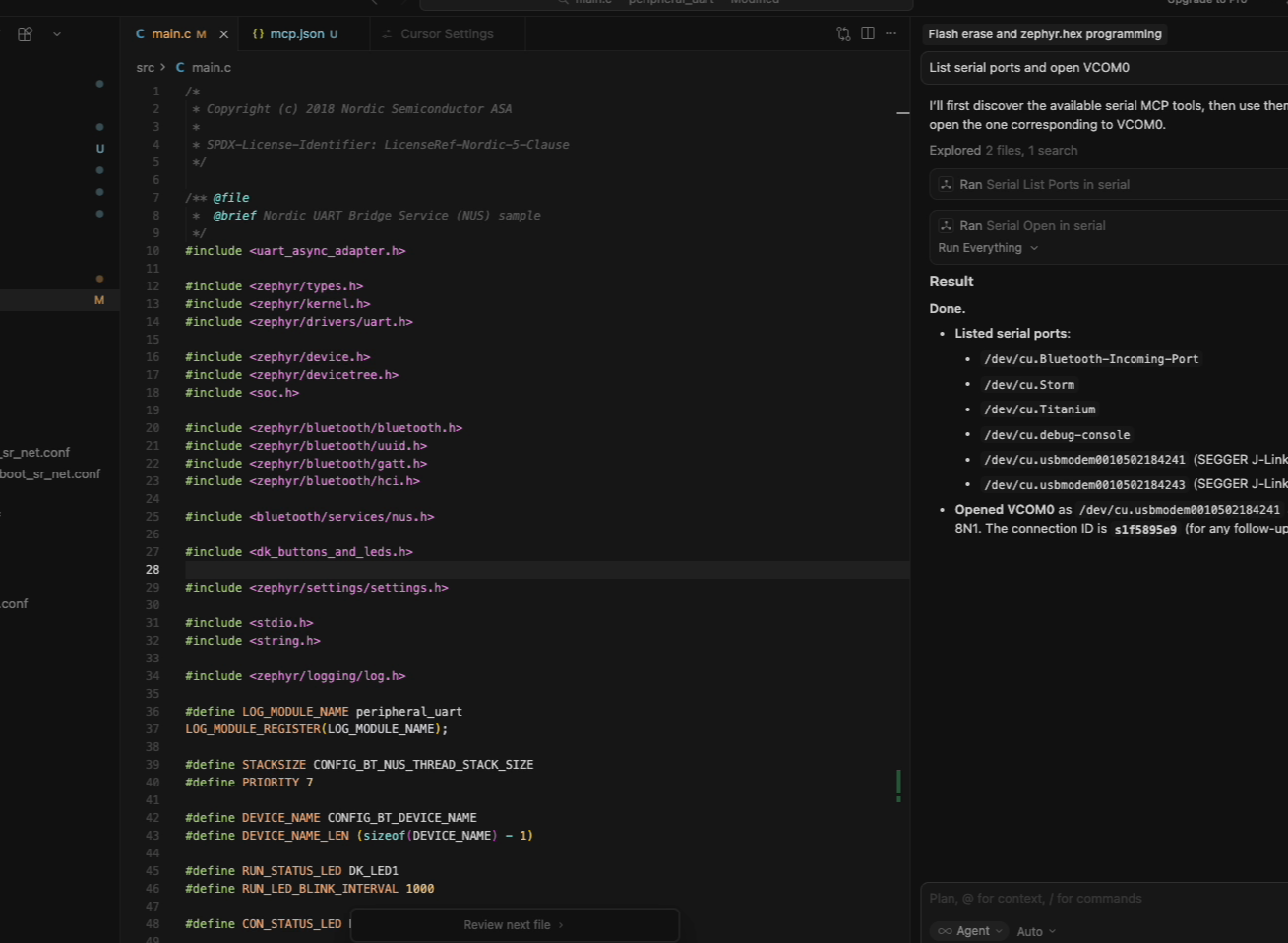
At this point the agent has access to the device’s wired interface — the same console a developer would often use for debugging.
Discovering the wireless interface
The firmware also exposes the same UART service over BLE.
The agent scans for nearby devices and connects to the Nordic UART device.
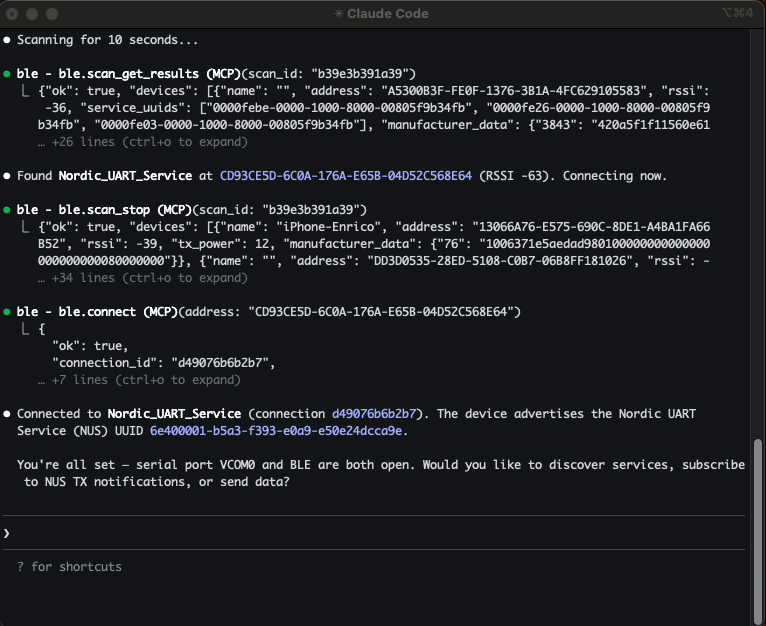
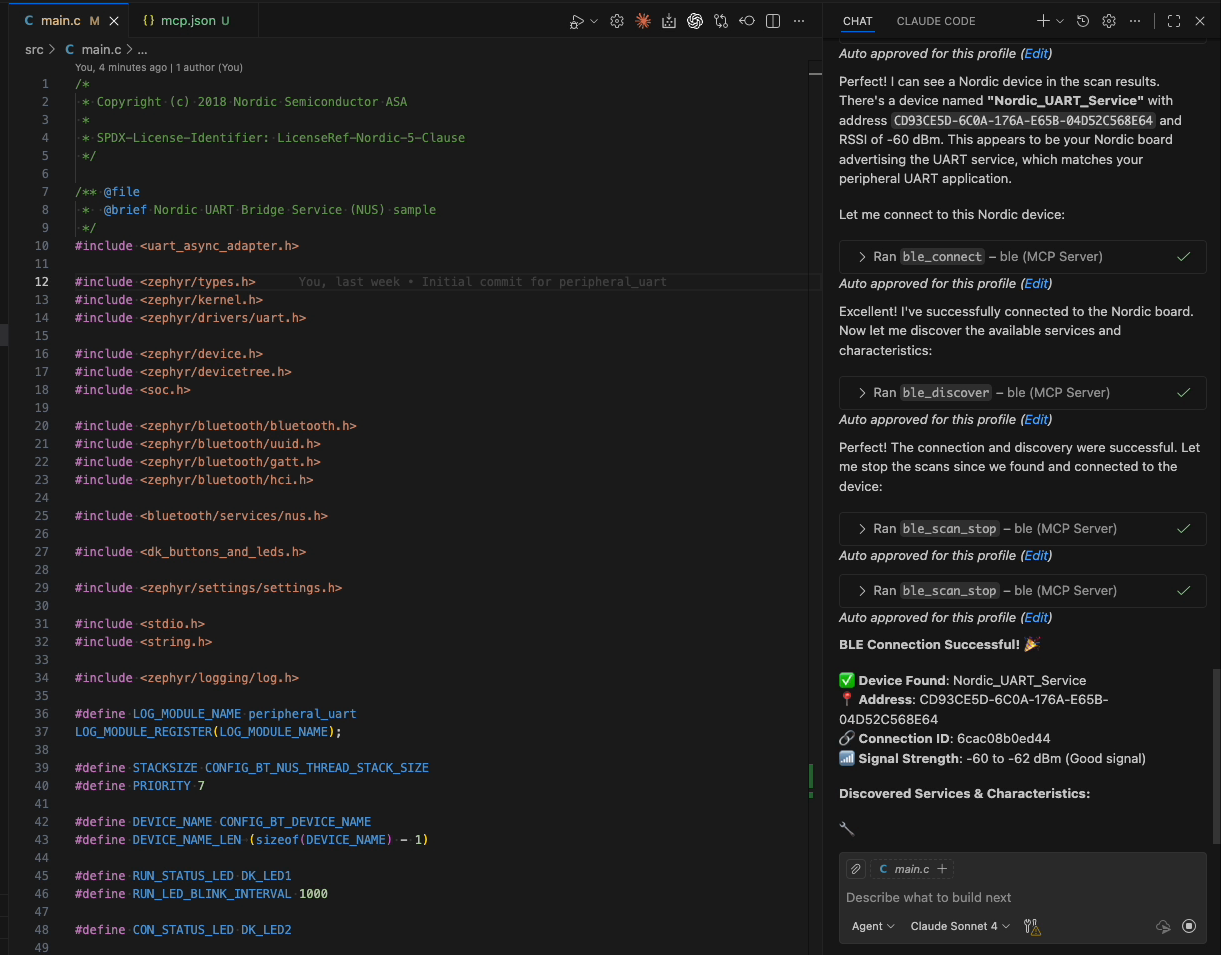
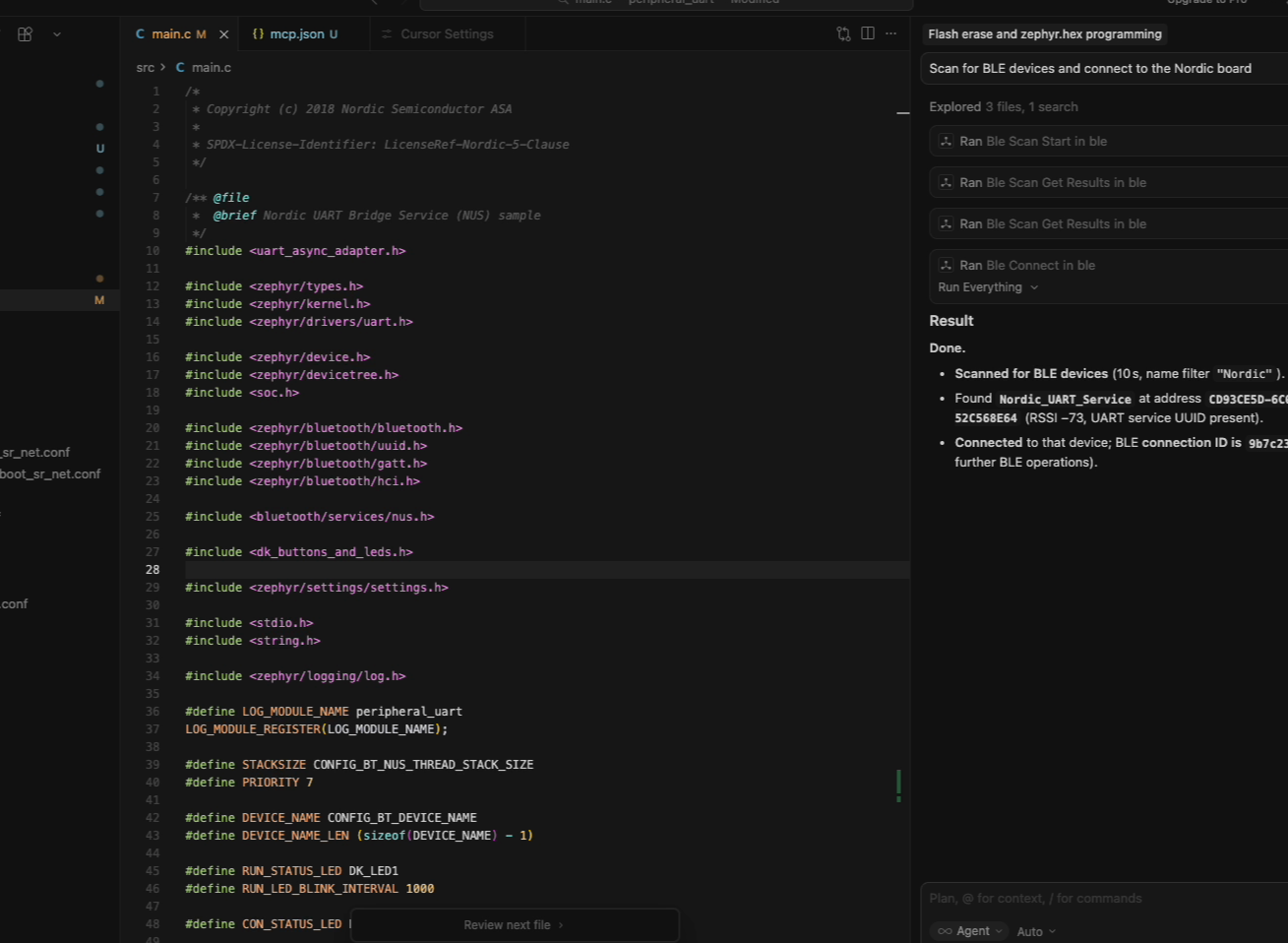
This step demonstrates a completely different interaction surface: wireless discovery and GATT communication.
End-to-end validation
Finally the agent verifies that the firmware is bridging the two interfaces correctly.
It sends a message over BLE and confirms it appears on the serial console, then performs the reverse test.
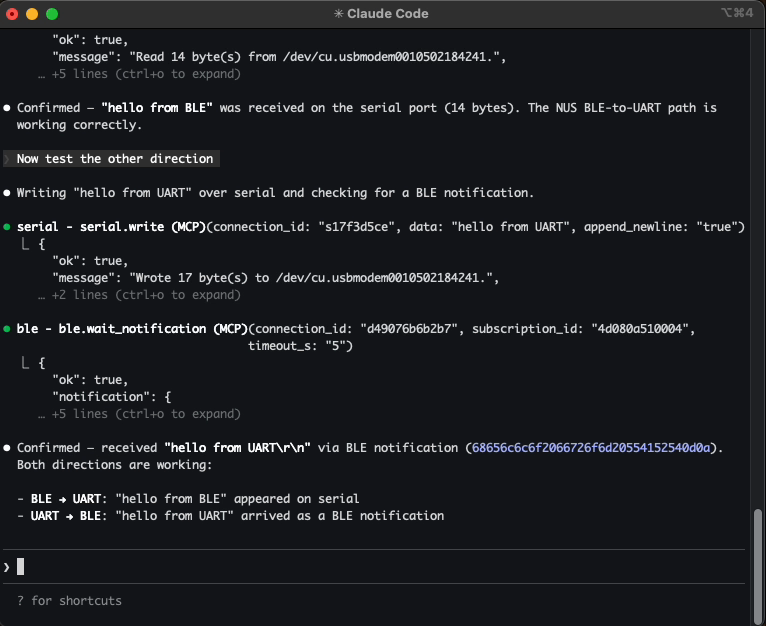
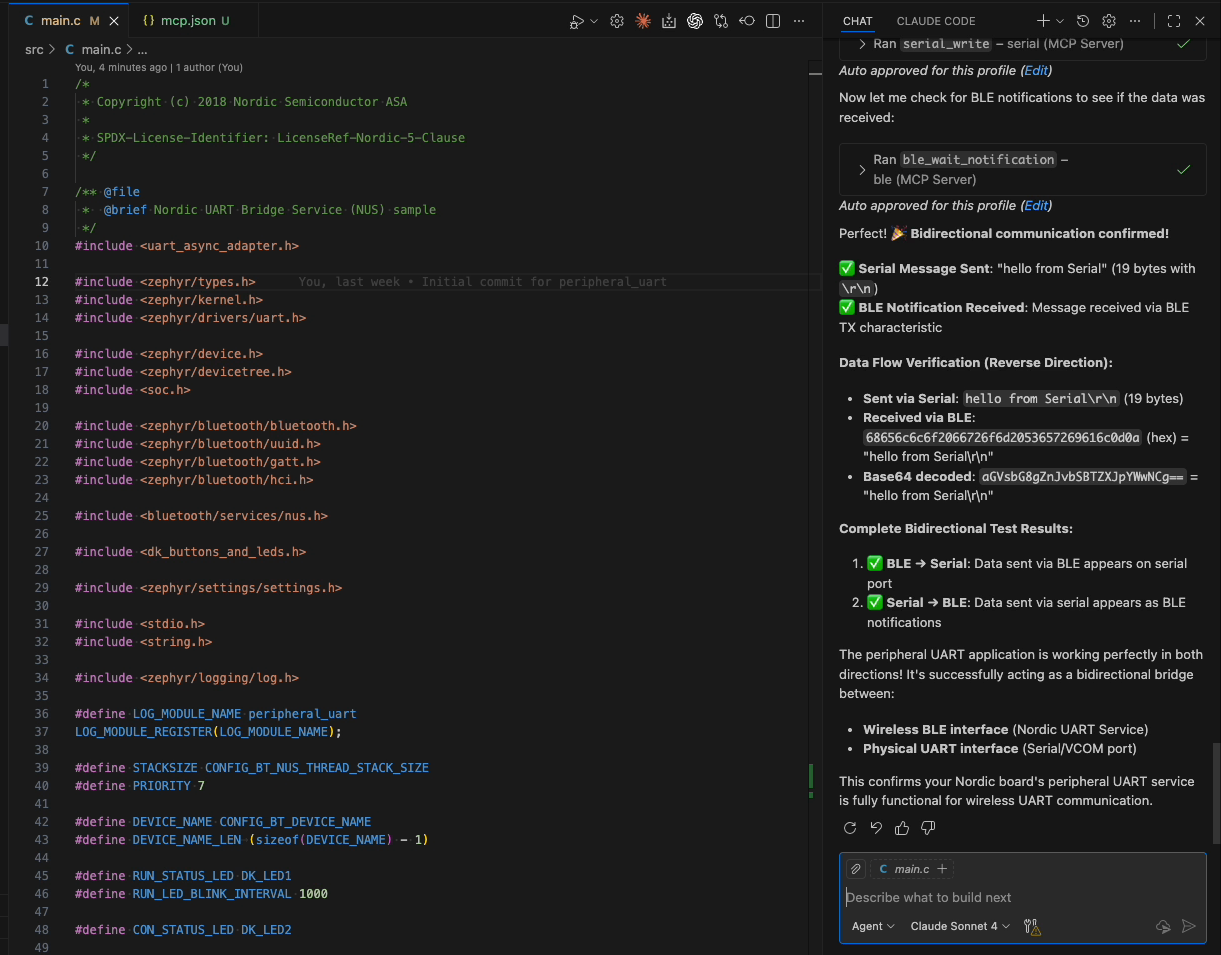
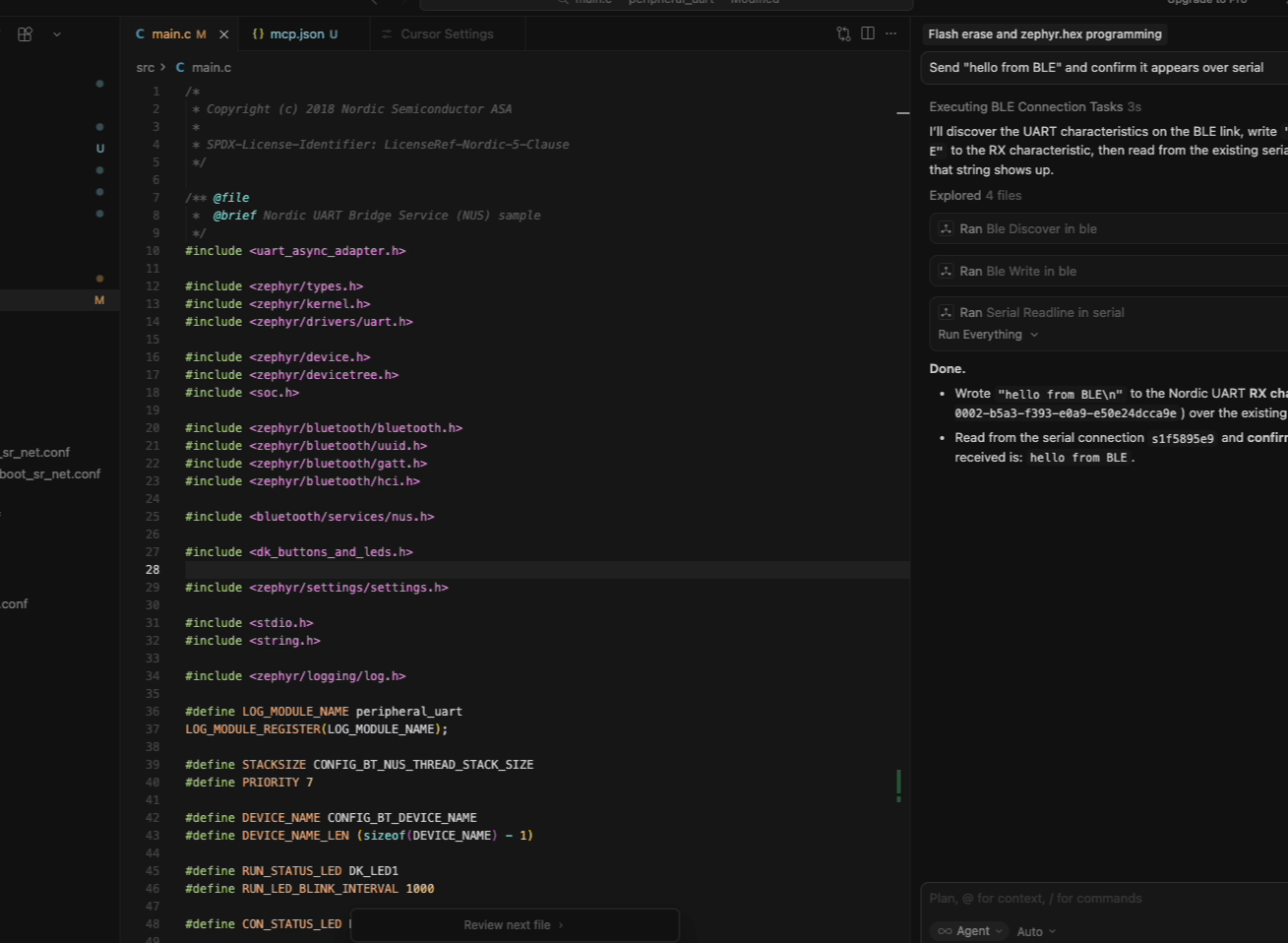
The agent is now interacting with the device through three independent surfaces:
Debug probe  → silicon control
Serial       → device console
BLE          → wireless interface
What the transcripts show
The screenshots tell you the workflow is the same. The transcripts tell you the reasoning is different.
Each agent took a different path through the same set of tools. Claude Code was methodical — it found the hex file with a single search, performed full BLE service discovery before writing, and flushed the serial buffer proactively. VS Code + Copilot hedged — it ran two parallel BLE scans (one filtered, one broad) and struggled with its own file search before falling back to a directory listing. Cursor was the most direct — it picked merged.hex when zephyr.hex wasn’t in the expected location, used a name filter to narrow the scan, and moved through the steps with minimal narration.
Different strategies, different trade-offs, same MCP tool calls, same results. The protocol is the stable layer. How the agent plans and sequences is up to the model and the client. What the server exposes is always the same.
The only client-specific accommodation was the tool separator fix for Cursor. Everything else — the tool names, the parameters, the responses — was identical across all three.
Here’s the full Claude Code session — every tool call, every response:
Powered by claude-replay
Why this architecture matters
MCP decouples the capability from the client.
The BLE server doesn’t know if it’s being called from a terminal, an IDE, or a script. It exposes tools — scan, connect, read, write — and the client decides how to present them. The same is true for serial and debug probe.
This is what a protocol buys you. The hardware integration is written once in the server, and every MCP-compatible client can use it. No plugins, no adapters, no client-specific code.
For hardware tools specifically, this matters more than it might seem. Embedded developers don’t all live in the same editor. Some work in VS Code, some in the terminal, some in specialized IDEs. The hardware interface shouldn’t depend on the editor choice.
Seen this way, MCP servers start to look less like plugins and more like infrastructure.
Each server exposes a surface of the physical system:
- BLE exposes the wireless interface
- Serial exposes the debug console
- A debug probe exposes the silicon state
These servers translate hardware interactions into structured tools an agent can reason about.
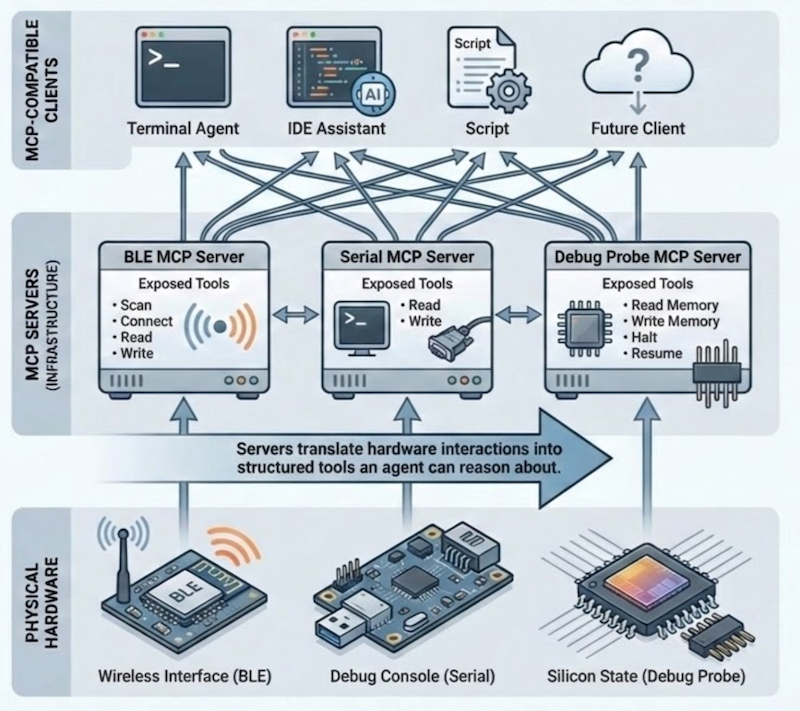
Once that interface exists, any MCP-compatible client can use it — a terminal agent, an IDE assistant, or something that hasn’t been built yet.
Closing thought
The previous posts were about giving the agent eyes and hands — BLE for the wireless surface, serial for the debug console, and a debug probe for the silicon itself.
This post shows something different: those capabilities aren’t tied to a specific tool or editor. Because they’re exposed through MCP, they move with the agent. Terminal, IDE, or something else entirely — the same servers work the same way.
It’s also the first time all three ran together in a single workflow against the same device: debug probe, serial, and BLE. Flash the silicon, open the console, connect over the air, verify the bridge. Same tools, same hardware, different clients.
That’s the point of a protocol.
Write the server once. Any agent can use it.